Dashboard Overview
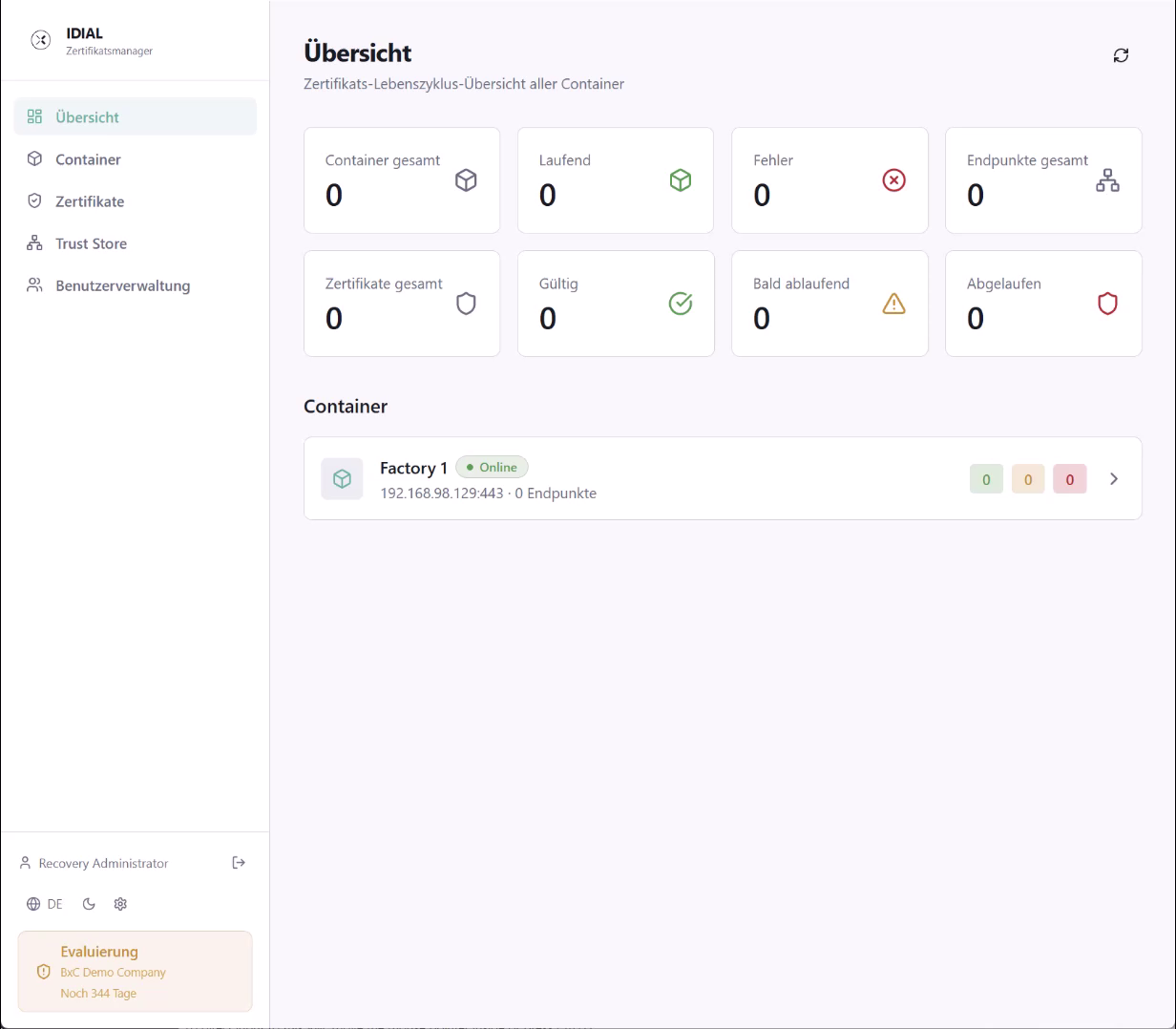
After login, you are automatically taken to the Overview — the central dashboard of IDIAL-APP. It shows the status of all managed IDIAL containers and their certificates at a glance.
Statistics Tiles
The dashboard displays two rows of four tiles each.
The first row shows the status of the IDIAL containers:
| Tile | Meaning |
|---|---|
| Total Containers | Number of all registered IDIAL containers |
| Running | Containers with status "Online" |
| Errors | Containers with connectivity or configuration issues |
| Total Endpoints | Total number of monitored endpoints across all containers |
The second row shows the status of the managed certificates:
| Tile | Meaning |
|---|---|
| Total Certificates | Total number of all certificates across all containers and endpoints |
| Valid | Valid, not yet expired certificates |
| Expiring Soon | Certificates expiring shortly that should be renewed |
| Expired | Already expired certificates that must be renewed immediately |
Filtering the Container List
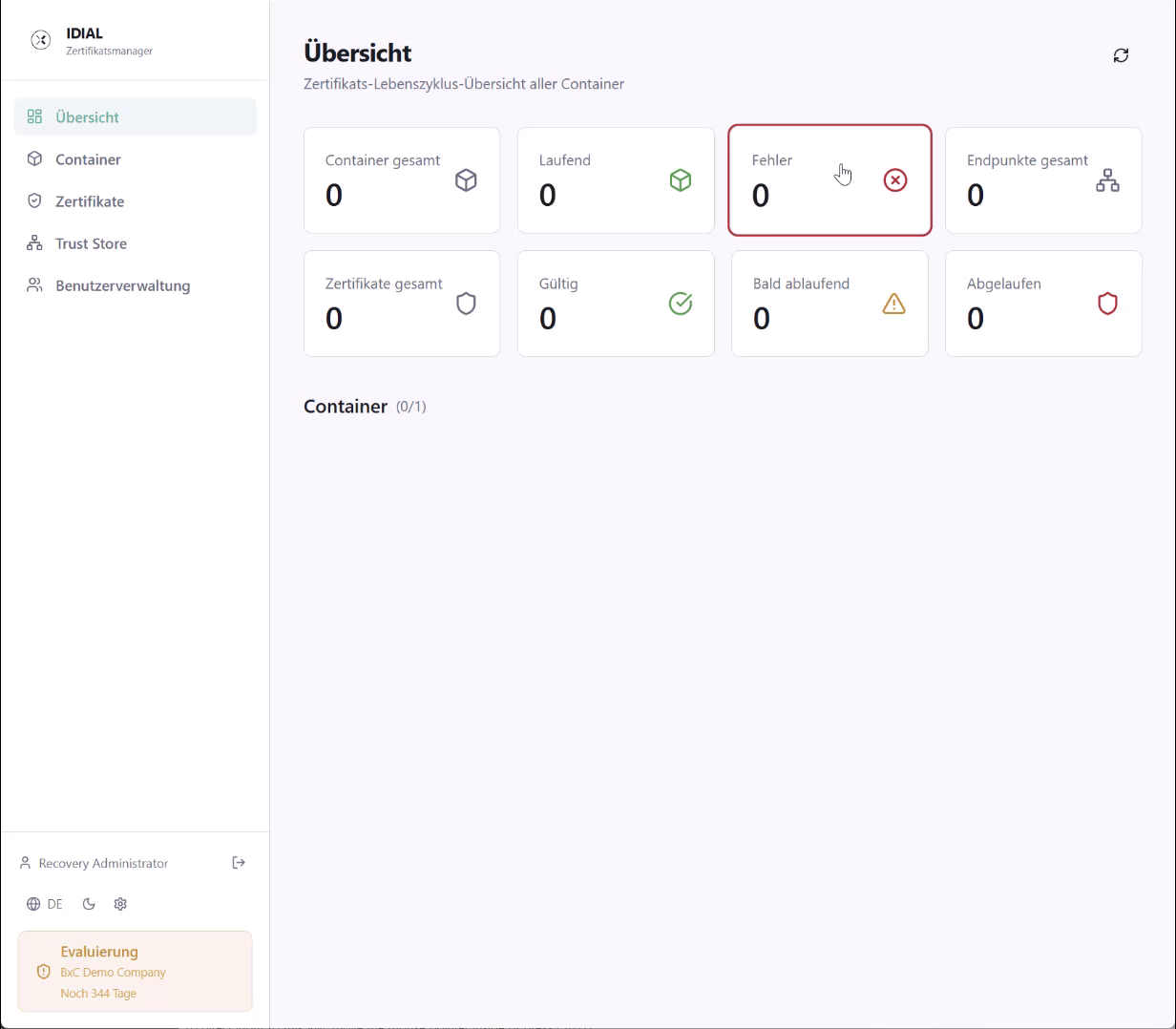
Clicking a statistics tile filters the container list below it to show only the containers matching the selected criterion. Clicking the same tile again clears the filter.
Container List
Below the tiles, the Container section lists all registered IDIAL containers. Each entry shows the name, connection status (Online / Offline), address (IP:port), and the number of endpoints. The three colored badges on the right give a quick overview of the certificate status: green for valid, orange for expiring soon, and red for expired certificates. Clicking the arrow button on the right opens the detail view for that container.
Navigation
The left navigation bar provides access to all areas of the application:
| Menu Item | Description |
|---|---|
| Overview | The dashboard |
| Container | Management of IDIAL containers and their endpoints |
| Certificates | Certificate overview across all containers |
| Trust Store | Management of trusted certificate authorities |
| User Management | Management of user accounts and permissions |
User Area
At the bottom of the navigation bar is the user area. It shows the name of the logged-in user; the arrow icon next to it signs the user out. The globe icon switches the interface language between German and English. The moon icon toggles between Dark Mode and Light Mode. The gear icon opens the application settings page.
At the very bottom of the bar, the license status is displayed — showing the name of the licensed organization and the remaining validity period.