Trust Store
The Trust Store is accessible via the Trust Store menu item in the left navigation. It allows central management of CA certificates (certificate authorities) without having to upload them to each IDIAL container individually. The certificates can then be used in the PKI configurations of containers to define which trusted CAs are allowed to issue certificates for managed endpoints.
Changes to the Trust Store — added or removed CA certificates — are automatically propagated to all connected IDIAL containers and their PKI configurations.
Add a CA Certificate
Click the Add CA Certificate button in the top-right corner to open the upload dialog.
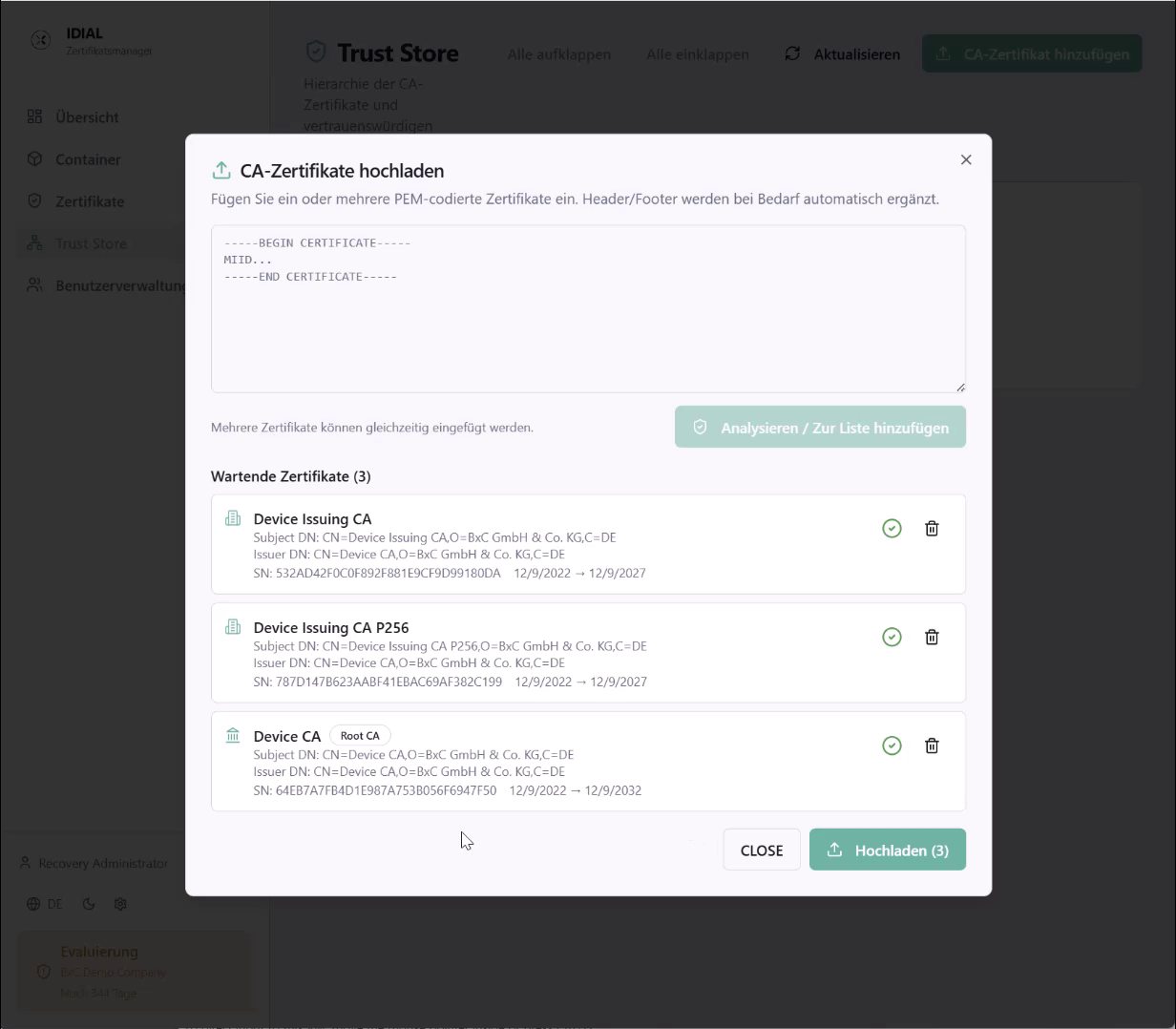
Paste one or more PEM-encoded certificates into the text field. Multiple certificates can be pasted one after another — the -----BEGIN CERTIFICATE----- / -----END CERTIFICATE----- headers and footers are added automatically if missing.
Click Analyze / Add to List to parse the pasted certificates and display them as Pending Certificates for review. The analysis shows the name, Subject DN, issuer, and validity period for each certificate. Successfully validated certificates are marked with a green checkmark.
Click Upload to add all validated certificates to the Trust Store. Click Close to close the dialog.
Certificate Hierarchy
After uploading, CA certificates are displayed in the Trust Store as a tree structure that reflects the certificate hierarchy — Root CAs as parent nodes, Intermediate CAs as child entries.
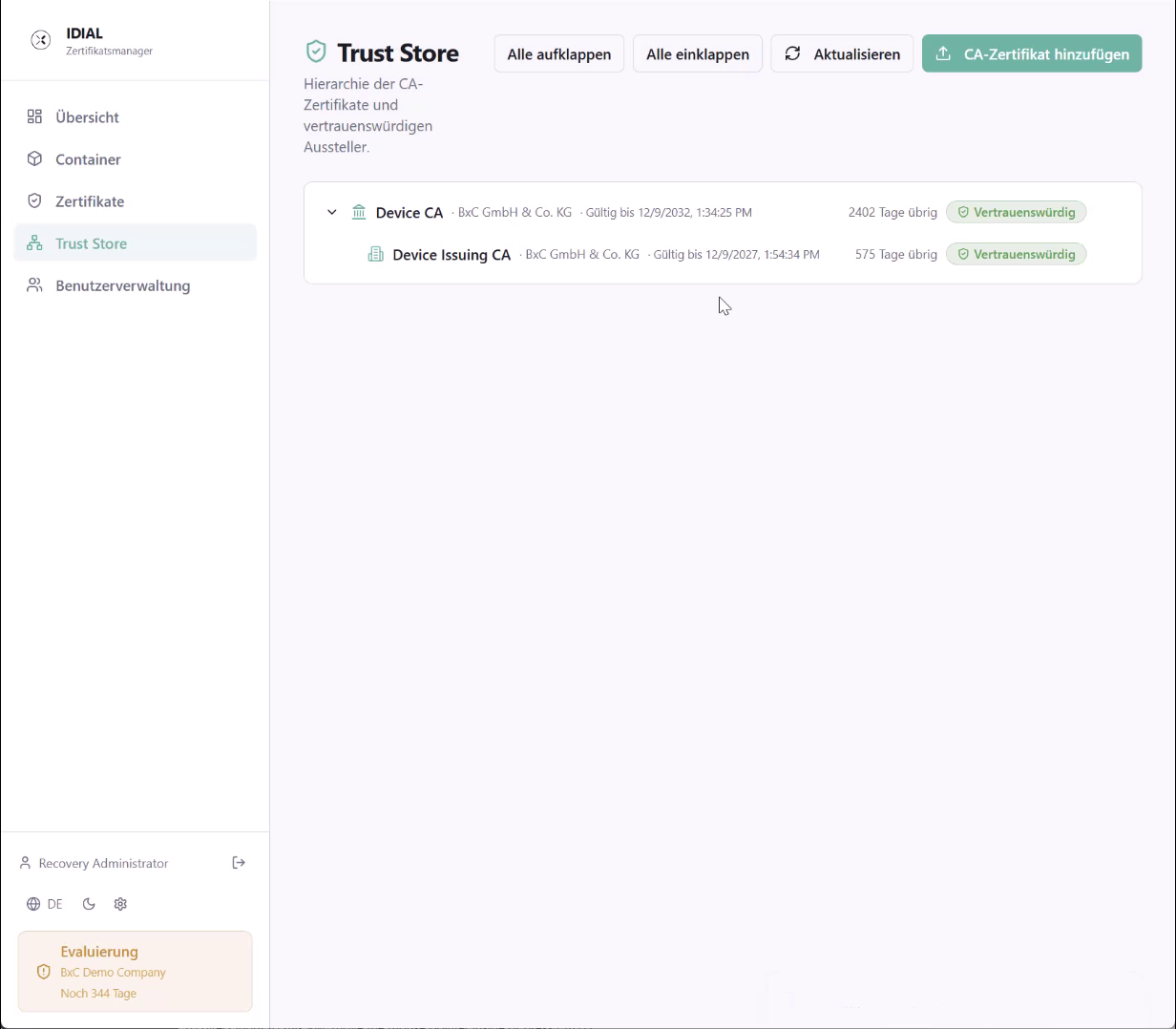
Each entry shows the CA name, issuing organization, expiry date, and trust status (Trusted). The tree can be expanded or collapsed using Expand All and Collapse All.
Certificate Details
Clicking an entry in the list opens the detail view for that CA certificate.
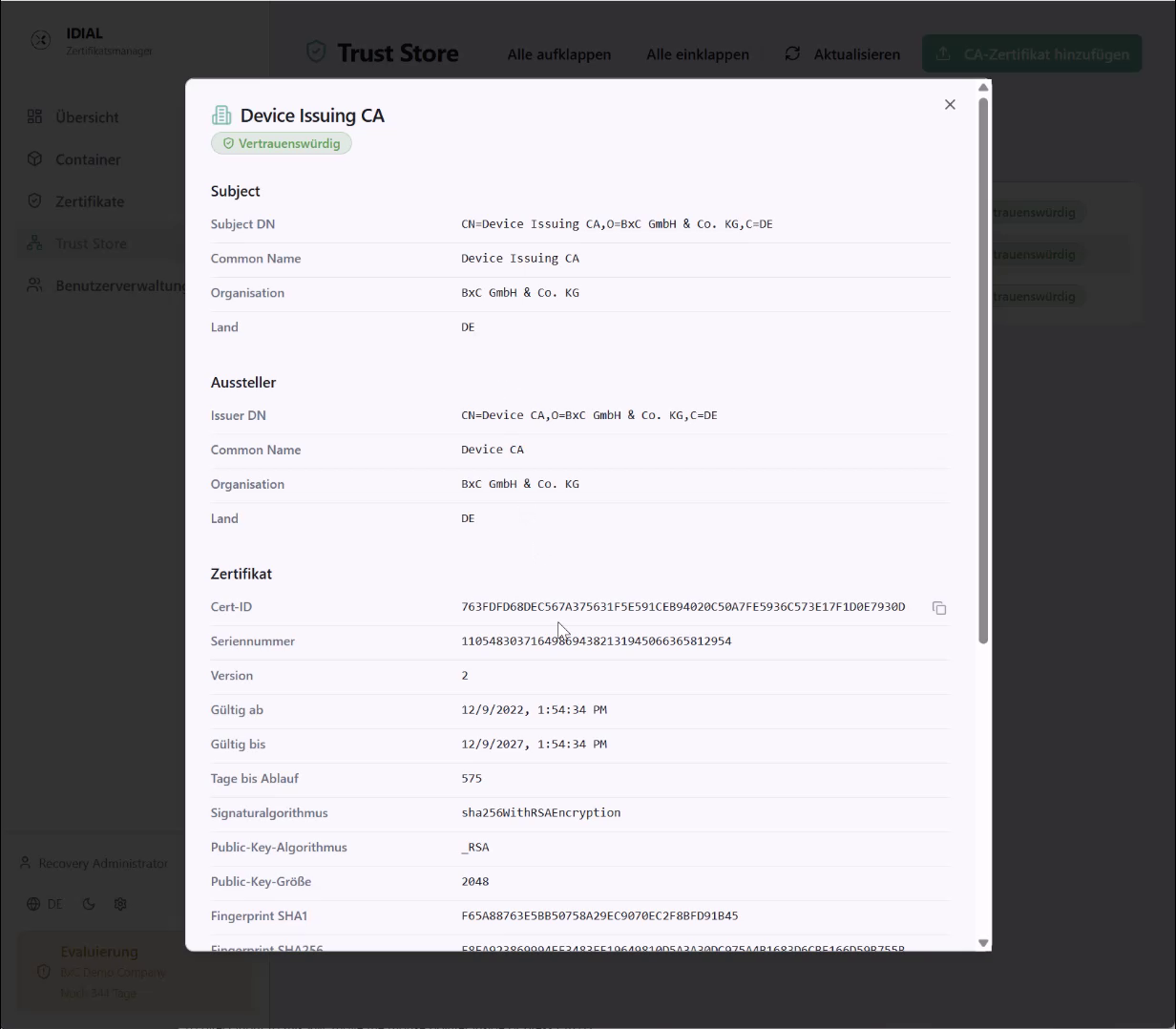
The detail view shows all relevant certificate information: Subject DN, Common Name, Organization, Country, issuer details, Cert ID, serial number, version, validity period, remaining days, signature algorithm, public key algorithm, public key size, and fingerprints (SHA1 and SHA256).
Remove a Certificate
The delete icon on the right side of an entry in the Trust Store list removes the CA certificate. The removal is automatically propagated to all connected IDIAL containers and PKI configurations — the certificate is no longer trusted from that point on.