License Management
License management is accessible via the Manage Licenses link in the overview or via the No valid license status indicator in the left navigation. Without a valid license, the core functions of IDIAL-APP are locked.
Upload a License
Click the Upload License button in the top-right corner to open the upload dialog.
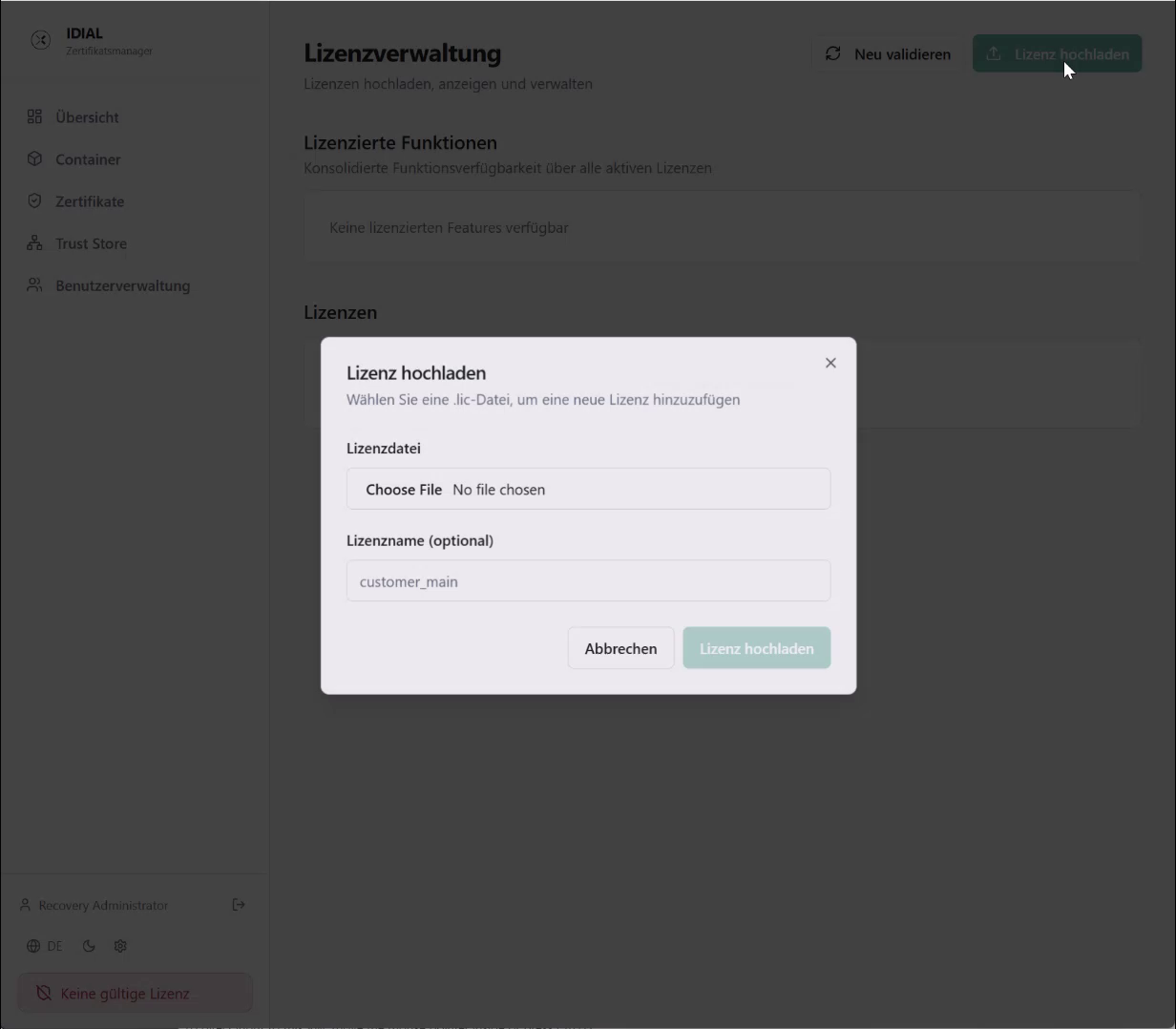
Select the .lic file from your local system in the License File field. The License Name (optional) field allows you to assign a custom name to identify the license within the management view. Click Upload License to load the file into the application — it will be evaluated automatically.
License Overview
After uploading, the license management view shows two sections:
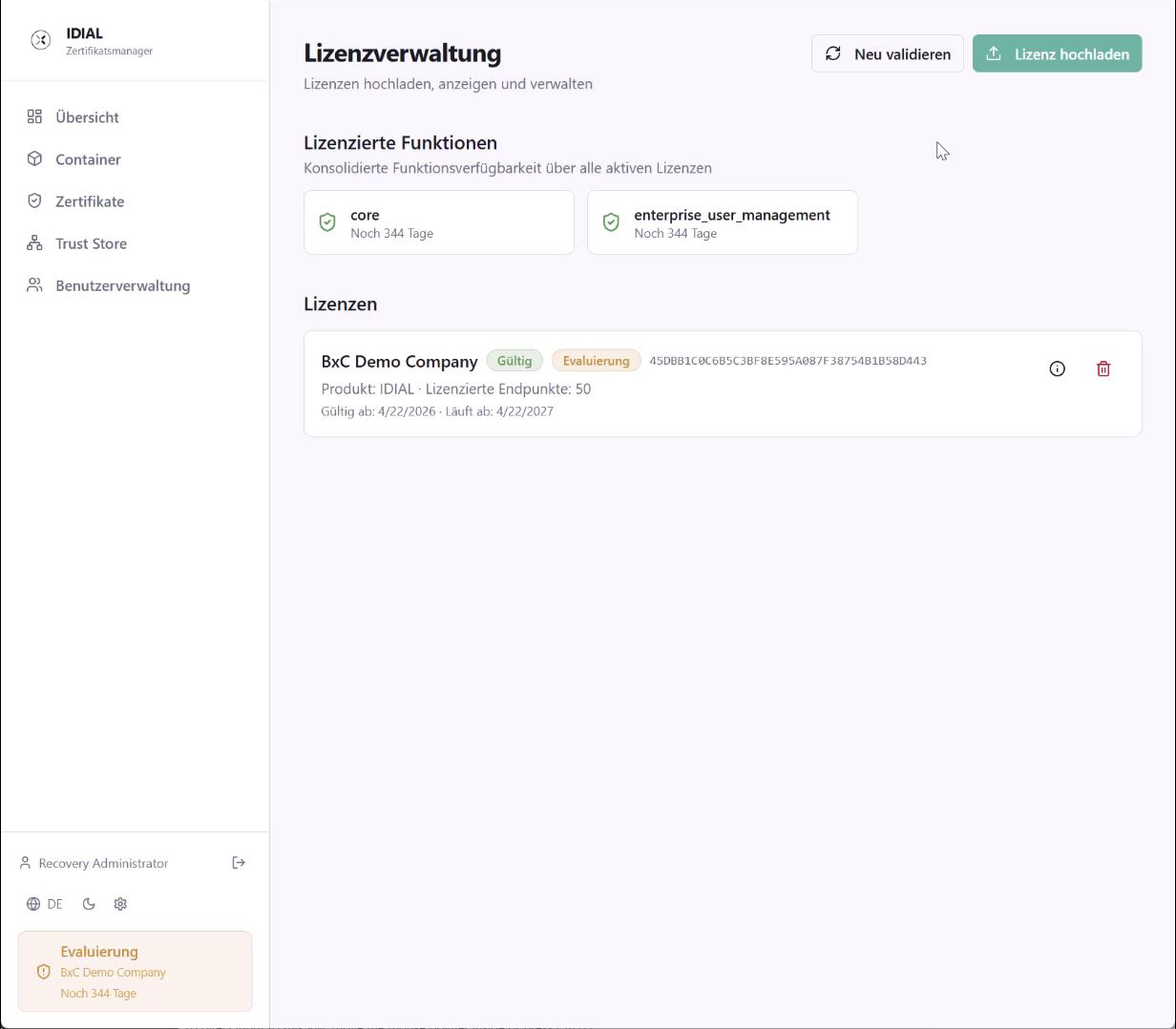
The Licensed Features section shows a consolidated overview of all feature entitlements across all active licenses. Each unlocked feature is displayed as a tile with its name and remaining validity.
The Licenses section lists each uploaded license as a separate entry. The entry shows the license name, validity status (Valid or expired), license type (Evaluation or Production), the license ID, the licensed product, the number of licensed endpoints, and the validity period. The info icon opens the full license details.
Multiple Licenses
The license management supports multiple licenses simultaneously. This allows licenses for different company groups, locations, or subsidiaries to be stored and managed together.
License Types
IDIAL-APP distinguishes two license types:
| Type | Description |
|---|---|
| Evaluation | Test license — must not be used in production |
| Production | Production license — valid for both evaluation and production use |
Re-validate Licenses
The Re-validate button in the top-right corner re-checks all stored licenses and refreshes their displayed status.
Remove a License
The delete icon (trash can) on the right side of a license entry removes the license from the application.