IDIAL Deployment on AWS ECS Fargate
Overview
This document describes the complete setup of IDIAL on AWS ECS Fargate.
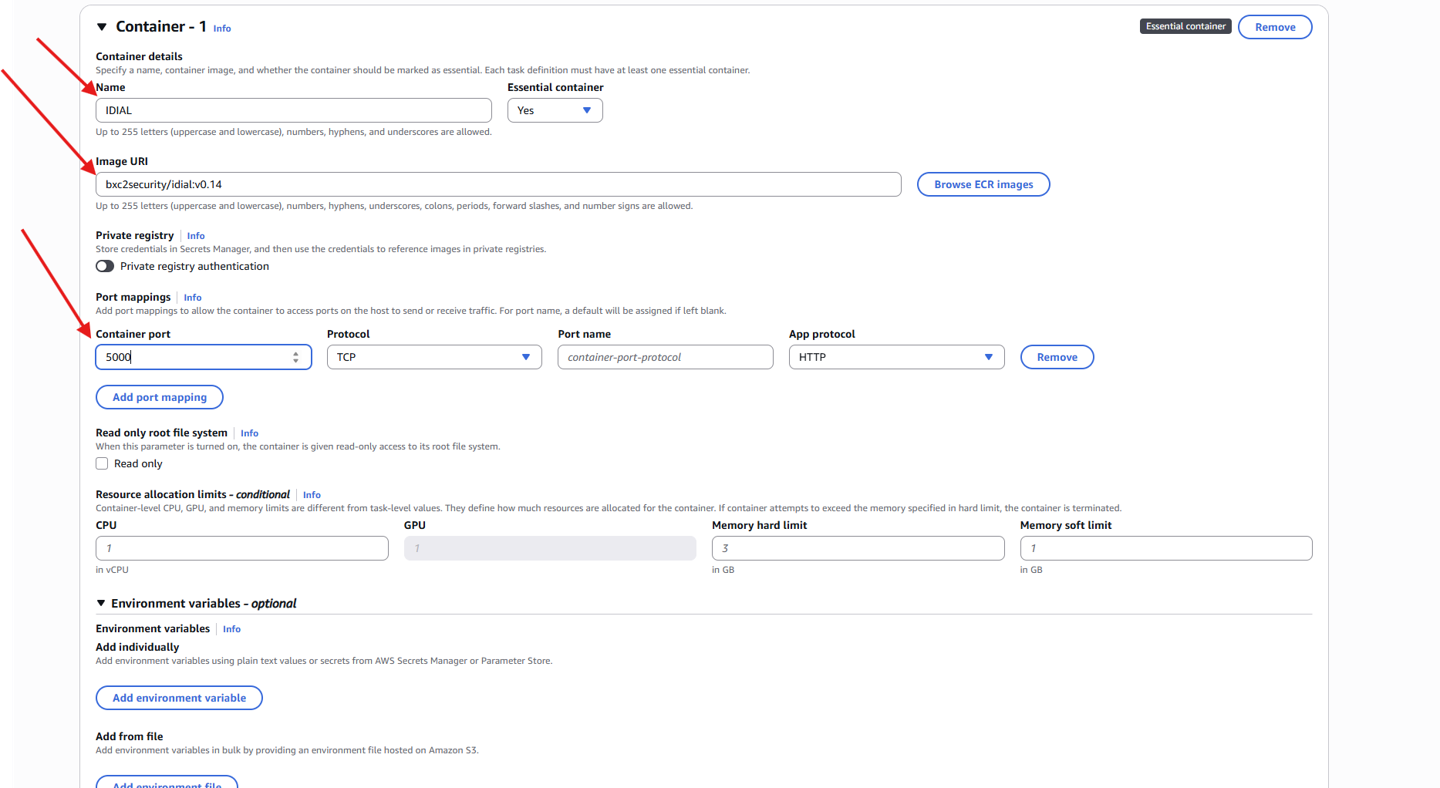
IDIAL consists of two containers running together as a single ECS task:
| Container | Image | Port | Function |
|---|---|---|---|
| IDIAL | bxc2security/idial:v0.14 | 5000 | REST API + PKI |
| Web_Backend | bxc2security/idial-web-backend:latest | 5555 | Web UI |
Prerequisites
- AWS CLI installed and configured (
aws configure) - DockerHub account with access to the
bxc2securityrepository
1. Configure Secrets Manager
All credentials are stored in AWS Secrets Manager. Three secrets are required.
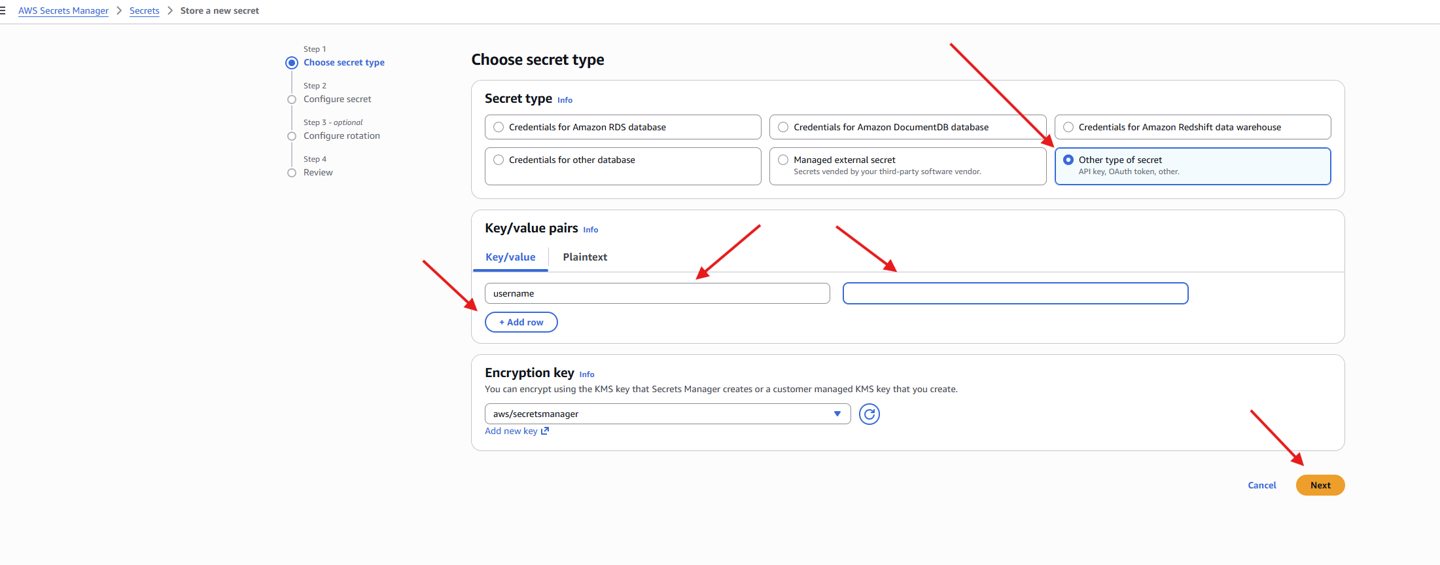
1.1 DockerHub Credentials
GUI: AWS Console → Secrets Manager → Store a new secret
- Secret type: Other type of secret
- Key/Value:
username→ your DockerHub username (not email)password→ your DockerHub Personal Access Token (not your login password)
- Secret name:
DockerHub
Create a Personal Access Token via: Docker Hub → Account Settings → Personal access tokens → Generate new token
Permission: Read-only is sufficient.
1.2 IDIAL PKCS8 Password
aws secretsmanager create-secret \
  --name idial/pkcs8-pw \
  --secret-string "YOUR_SECRET_VALUE" \
  --region eu-central-1
1.3 Web Backend Secret Key
aws secretsmanager create-secret \
  --name idial/web-secret-key \
  --secret-string "$(openssl rand -base64 32)" \
  --region eu-central-1
The resulting ARNs will include a random suffix (e.g. idial/pkcs8-pw-05u5Sl). This is expected and handled using wildcards in IAM policies.
2. Configure IAM Role
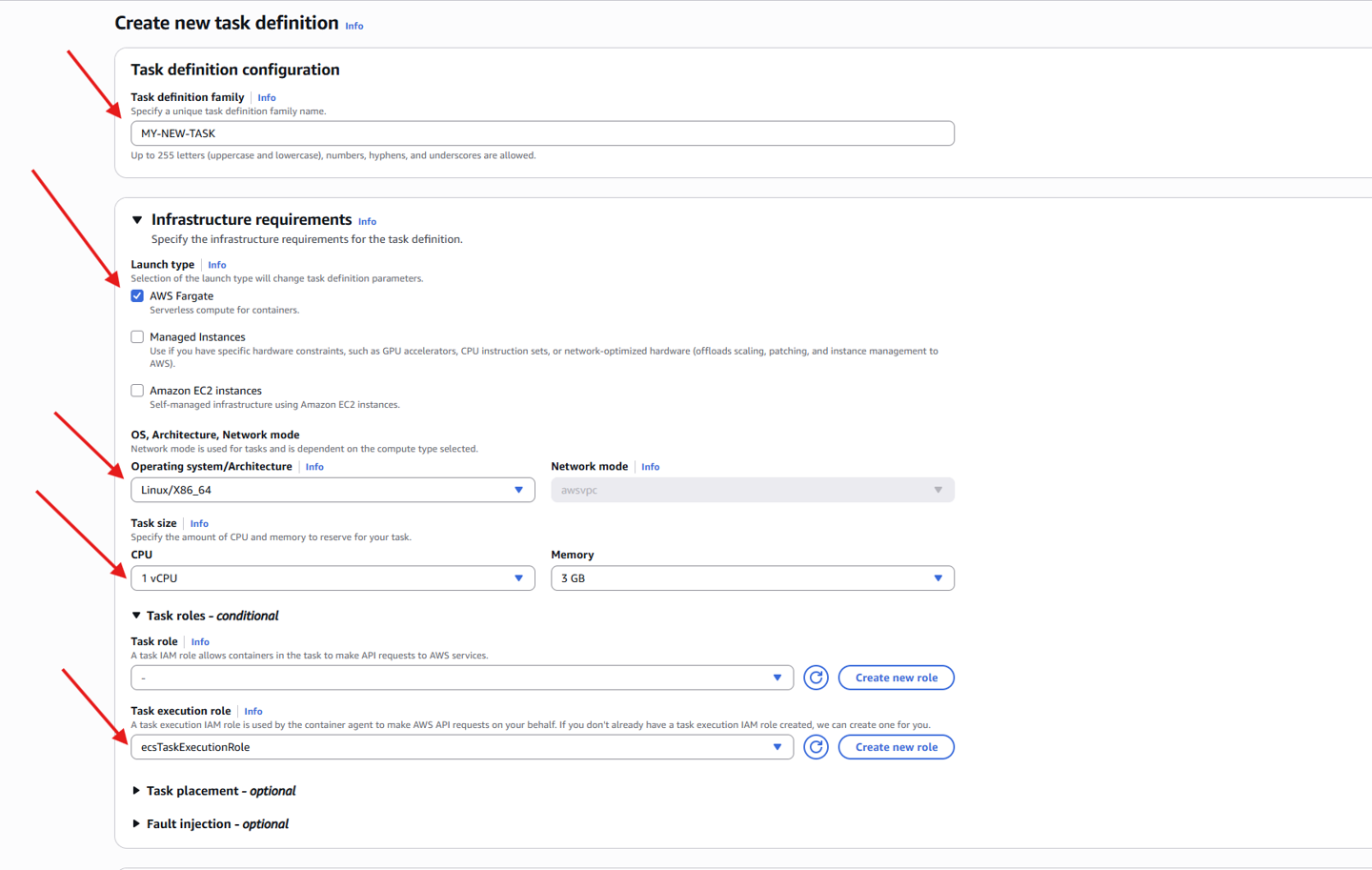
The ECS Task Execution Role requires access to all three secrets.
2.1 Verify Role
GUI: IAM → Roles → ecsTaskExecutionRole
If the role does not exist:
aws iam create-role \
  --role-name ecsTaskExecutionRole \
  --assume-role-policy-document '{
    "Version": "2012-10-17",
    "Statement": [{
      "Effect": "Allow",
      "Principal": {"Service": "ecs-tasks.amazonaws.com"},
      "Action": "sts:AssumeRole"
    }]
  }'

aws iam attach-role-policy \
  --role-name ecsTaskExecutionRole \
  --policy-arn arn:aws:iam::aws:policy/service-role/AmazonECSTaskExecutionRolePolicy
2.2 Add Secrets Manager Policy
aws iam put-role-policy \
  --role-name ecsTaskExecutionRole \
  --policy-name idial-secrets-access \
  --policy-document '{
    "Version": "2012-10-17",
    "Statement": [
      {
        "Effect": "Allow",
        "Action": "secretsmanager:GetSecretValue",
        "Resource": [
          "arn:aws:secretsmanager:eu-central-1:015955903887:secret:DockerHub*",
          "arn:aws:secretsmanager:eu-central-1:015955903887:secret:idial/pkcs8-pw*",
          "arn:aws:secretsmanager:eu-central-1:015955903887:secret:idial/web-secret-key*"
        ]
      }
    ]
  }' \
  --region eu-central-1
The * wildcard is required because Secrets Manager appends a random suffix to secret ARNs.
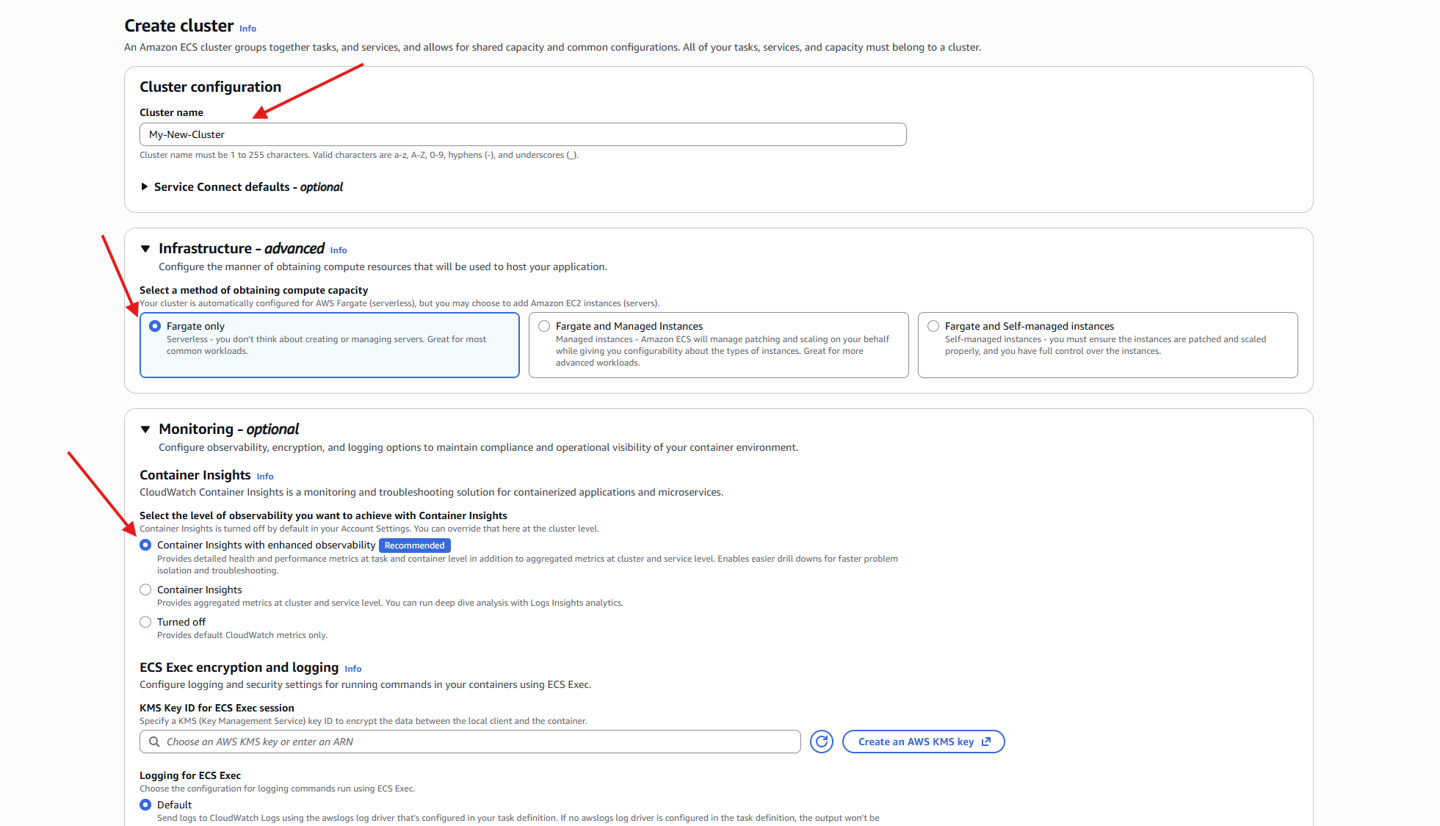
3. Create ECS Cluster
GUI: ECS → Clusters → Create Cluster
- Cluster name:
IDIALCluster - Infrastructure: AWS Fargate (serverless)
aws ecs create-cluster \
  --cli-input-json file://ecs-cluster.json \
  --region eu-central-1
4. Register Task Definition
The task definition defines both containers, environment variables, ports, and volumes.
GUI: ECS → Create new task definition
4.1 Container Configuration
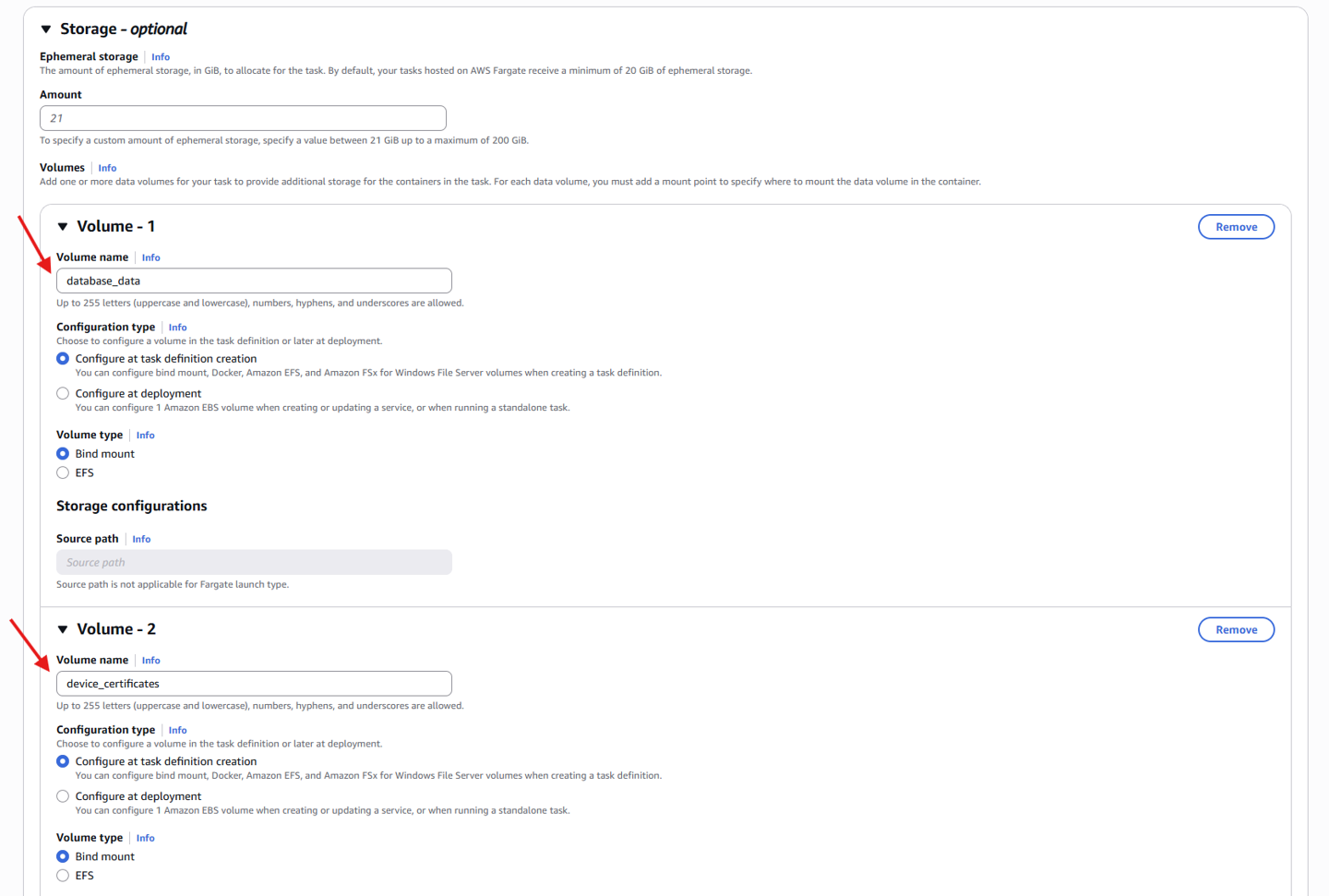
4.2 Volumes
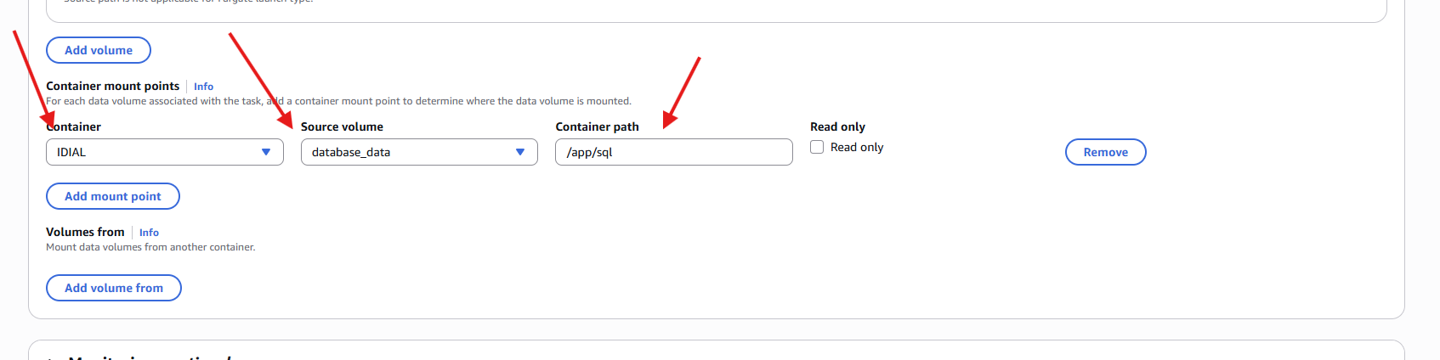
Both containers use ephemeral storage. Data is lost on task restart. For persistence, use EFS.
| Volume | Container | Path |
|---|---|---|
database_data | IDIAL | /app/sql |
device_certificates | IDIAL | /app/certs |
api_key | IDIAL | /app/secrets |
rest_tls | IDIAL | /app/tls |
idial_webapp_runtime_data | Web_Backend | /app/runtime_data |
idial_webapp_logs | Web_Backend | /app/logs |
idial_webapp_config | Web_Backend | /app/config |
5. Configure Security Group
| Port | Protocol | Source | Purpose |
|---|---|---|---|
| 5000 | TCP | Your IP /32 | REST API |
| 5555 | TCP | Your IP /32 | Web UI |
aws ec2 authorize-security-group-ingress \
  --group-id <SECURITY_GROUP_ID> \
  --ip-permissions '[
    {"IpProtocol":"tcp","FromPort":5555,"ToPort":5555,"IpRanges":[{"CidrIp":"<YOUR_IP>/32"}]},
    {"IpProtocol":"tcp","FromPort":5000,"ToPort":5000,"IpRanges":[{"CidrIp":"<YOUR_IP>/32"}]}
  ]'
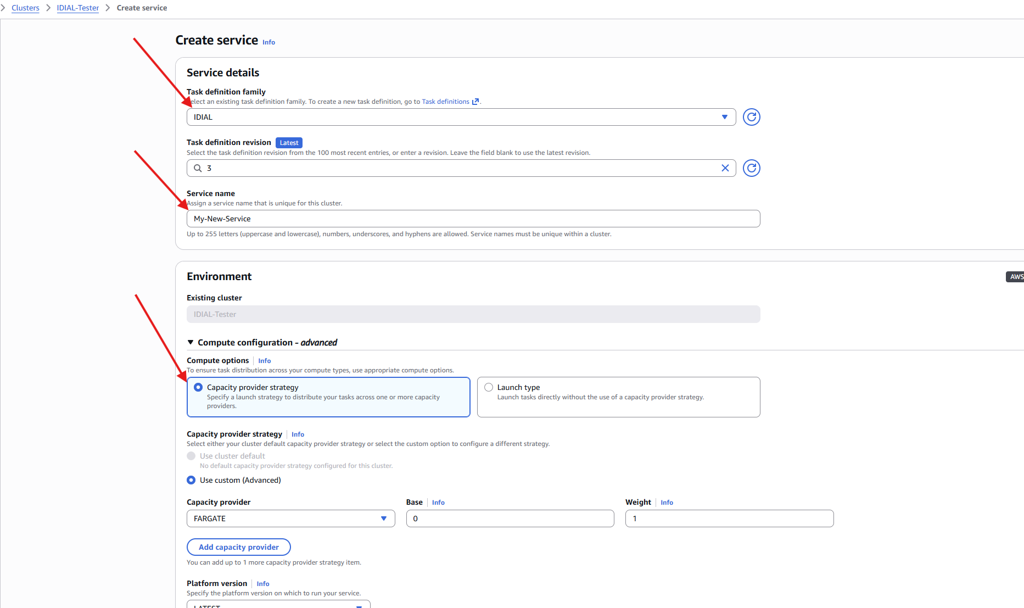
6. Create and Start Service
GUI: ECS → Clusters → IDIALCluster → Services → Create
6.1 Determine Subnet & Security Group
aws ec2 describe-subnets ...
aws ec2 describe-security-groups ...
Use a public subnet (MapPublicIpOnLaunch = true).
6.2 Configure ecs-service.json
{
  "cluster": "IDIALCluster",
  "serviceName": "idial",
  "desiredCount": 1,
  "launchType": "FARGATE"
}
6.3 Create Service
aws ecs create-service --cli-input-json file://ecs-service.json
6.4 Check Status
aws ecs describe-services --cluster IDIALCluster --services idial
7. Access IDIAL
Find the public IP of the running task:
aws ecs list-tasks --cluster IDIALCluster --service-name idial
aws ecs describe-tasks --cluster IDIALCluster --tasks <TASK_ARN>
Then open:
https://<PUBLIC_IP>:5555
8. Logs
aws logs describe-log-streams --log-group-name /ecs/idial
aws logs get-log-events --log-group-name /ecs/idial --log-stream-name <STREAM>
9. IDIAL API Key
On first start, the API key is printed to the container logs:
IDIAL API key (save this now): XXXXX
The API key is lost on task restart. Copy it from the logs immediately after first start.
Troubleshooting
AccessDeniedException
The ECS task cannot read secrets. Check the IAM policy in section 2.2 – verify ARNs and wildcard suffix.
401 Unauthorized
Wrong DockerHub credentials in Secrets Manager. Update the DockerHub secret with a valid Personal Access Token.
ERR_EMPTY_RESPONSE
- Ensure you are using HTTPS (
https://, nothttp://) - Check that the Security Group allows inbound TCP on port 5555 from your IP
- Check the container logs:
aws logs get-log-events ...
IP Changed
If your public IP changes, update the Security Group:
# Remove old rule
aws ec2 revoke-security-group-ingress \
  --group-id <SG_ID> \
  --ip-permissions '[{"IpProtocol":"tcp","FromPort":5555,"ToPort":5555,"IpRanges":[{"CidrIp":"<OLD_IP>/32"}]},{"IpProtocol":"tcp","FromPort":5000,"ToPort":5000,"IpRanges":[{"CidrIp":"<OLD_IP>/32"}]}]'

# Add new rule
aws ec2 authorize-security-group-ingress \
  --group-id <SG_ID> \
  --ip-permissions '[{"IpProtocol":"tcp","FromPort":5555,"ToPort":5555,"IpRanges":[{"CidrIp":"<NEW_IP>/32"}]},{"IpProtocol":"tcp","FromPort":5000,"ToPort":5000,"IpRanges":[{"CidrIp":"<NEW_IP>/32"}]}]'